Custom Branding
Customize the UTXOS wallet interface to match your brand. Set your logo, colors, and app name so users experience a consistent design throughout your application.
What can you customize?
| Setting | Description |
|---|---|
| Brand Name | Your app name displayed on the connect wallet screen |
| Primary Color | Main accent color used throughout the wallet interface |
| Logo | Your brand logo displayed in the wallet interface |
Configure Branding
- Go to Dashboard > Project Settings > Branding
- Upload your logo
- Enter your brand name
- Select your primary color
- Click Save
Changes apply immediately to all wallet interfaces using your project.
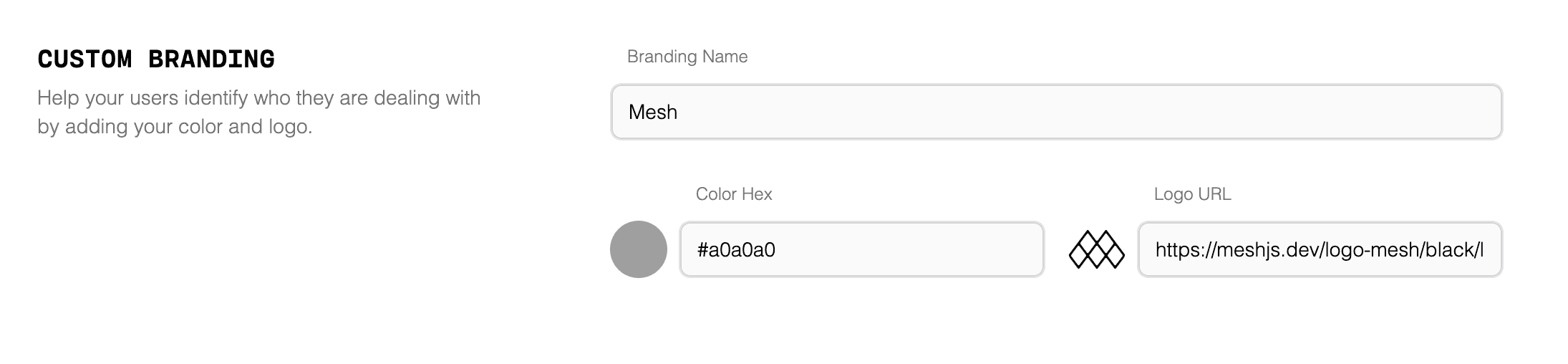
Brand Name
The brand name appears on the wallet connection screen and in various UI elements.
Best Practices
| Do | Avoid |
|---|---|
| Use your app name | Generic names like “Wallet” |
| Keep it short (2-3 words) | Long company names |
| Match your app’s branding | Inconsistent naming |
Example
Brand Name: "MyApp"Displays as: “Connect to MyApp”
Primary Color
The primary color is used for buttons, links, and accent elements throughout the wallet interface.
Format
Enter colors as hex values:
#3B82F6   (Blue)
#10B981   (Green)
#8B5CF6   (Purple)
#F59E0B   (Orange)
Best Practices
- Use your brand’s primary action color
- Ensure sufficient contrast for accessibility
- Test on both light and dark backgrounds
The wallet automatically adjusts text color for contrast. Dark colors get light text; light colors get dark text.
Logo
Upload your brand logo to display in the wallet interface.
Requirements
| Requirement | Specification |
|---|---|
| Format | PNG, JPG, SVG |
| Recommended size | 200x200 pixels minimum |
| Aspect ratio | Square (1:1) works best |
| Background | Transparent PNG recommended |
| File size | Under 500KB |
Display Locations
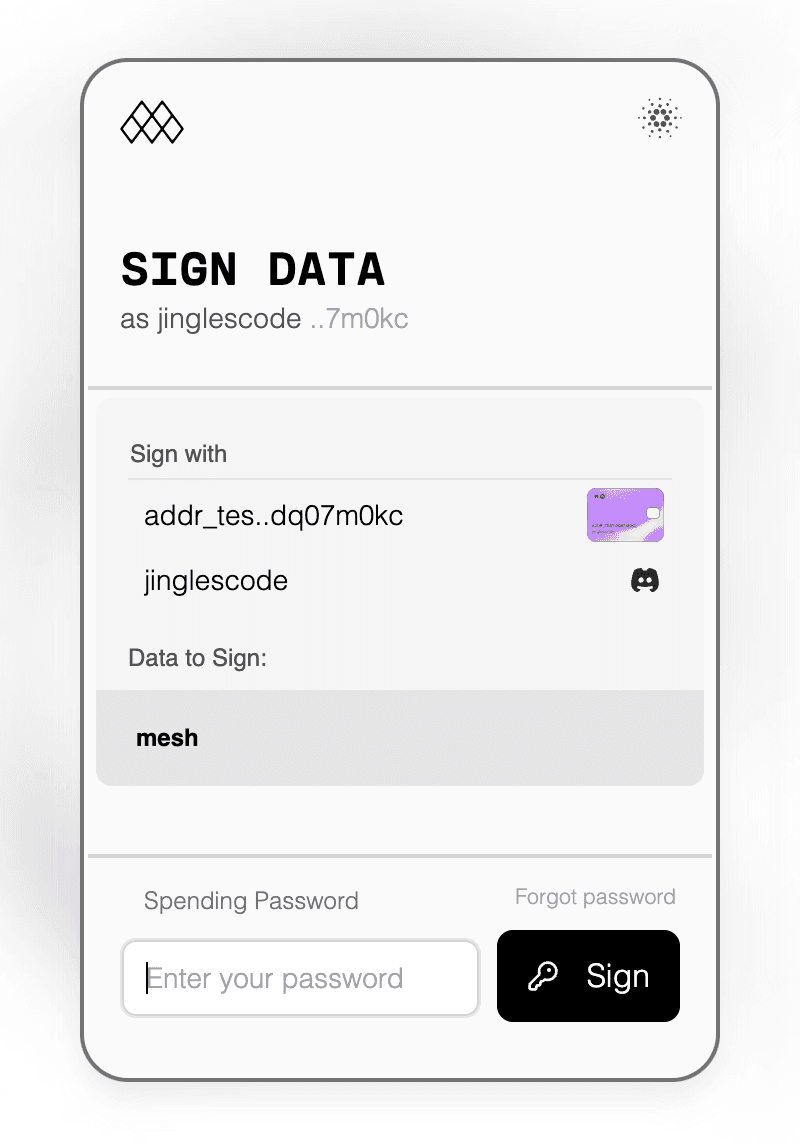
Your logo appears in:
- Wallet connection modal
- Sign transaction prompts
- Sign data prompts
- Wallet settings
Preview
After saving your branding settings, preview how the wallet appears to users:
SDK Configuration
Branding is configured in the dashboard, not in code. Your SDK initialization remains the same:
import { Web3Sdk } from "@utxos/sdk";

const sdk = new Web3Sdk({
  projectId: process.env.NEXT_PUBLIC_UTXOS_PROJECT_ID,
});

// Wallet interface automatically uses your branding
const wallet = await sdk.wallet.connect();
All instances using your project ID display your branding automatically.
Multiple Brands
If you need different branding for different applications:
| Approach | When to Use |
|---|---|
| Single project | Same brand across all apps |
| Multiple projects | Different brands for different products |
Create separate UTXOS projects for distinct brands:
- Create a new project in the dashboard
- Configure branding for that project
- Use the project’s unique Project ID in your app
Each project maintains independent branding settings.
White-Label Considerations
For complete white-label experiences:
| Feature | Status |
|---|---|
| Custom logo | Available |
| Custom colors | Available |
| Custom app name | Available |
| Custom domain | Coming soon |
| Remove UTXOS branding | Coming soon |
Contact support@utxos.dev for enterprise white-label options.
Troubleshooting
Logo not appearing
Cause: Image format or size issue.
Solution:
- Verify file is PNG, JPG, or SVG
- Check file size is under 500KB
- Try re-uploading the image
- Clear browser cache and reload
Color not applying
Cause: Invalid color format.
Solution:
- Use hex format:
#RRGGBB - Include the
#prefix - Verify six characters after the
#
Changes not visible
Cause: Browser cache or propagation delay.
Solution:
- Wait 1-2 minutes for changes to propagate
- Clear browser cache
- Test in incognito mode
- Verify you saved changes in the dashboard
Next Steps
- Custom Authentication - Configure login providers
- Authentication Providers - Social login options
- Wallet Integration - Integrate wallets into your app